Playwright와 Trafilatura를 활용한 JavaScript 기반 웹사이트 추출
catalystmind2025. 6. 13. 23:50
728x90
TL;DR
기존 Trafilatura + Requests 조합은 JavaScript 기반 사이트에서 본문 추출 한계 발생
Playwright 도입 후 requests에서 실패한 biz.chosun.com 등은 100% 추출 성공
www.msn.com 등 일부 사이트는 여전히 추출 실패, 특화된 로직 필요
처리 속도는 requests 대비 평균 10배 감소하여 성능 최적화 필요
Playwright 병렬화를 통한 처리 시간 단축이 핵심 개선 과제
향후 개선 방향
개선 방향 ① 처리 시간 단축을 위한 Playwright 병렬화 필요
개선 방향 ② msn.com 등 반복 실패 사이트에 특화된 추출 로직 필요
trafilatura+ requests를 이용하여 약 80%의 기사 본문 추출에 성공하였다. 실패한 20%를 분석한 결과, 특정 도메인에서는 본문 추출이 100% 실패하였다. 하지만, 우리가 실제 브라우저에서 접속하면 모든 것이 정상으로 보인다. 이는 왜 그럴까? 이는 JavaScript로 만들어진 웹사이트의 특징으로 JavaScript가 실행된 후에 실제 내용이 나타나는 방식이기 때문이다. 따라서, 이런 웹사이트에서 본문을 추출하려면 실제 브라우저를 열고 웹사이트로 이동하도록 자동화해야 한다.
requests + trafilatura 조합 실패 사례 분석
🎯 문제 도메인 집중도
biz.chosun.com100% (62건)
www.msn.com100% (23건)
기타 도메인약 10% (9건)
🔗 프로토콜 분석
HTTPS 사이트85건 (90.4%)
HTTP 사이트9건 (9.6%)
평균 처리시간1.45초
오류 유형별 분석
콘텐츠 추출 실패
페이지 구조 변경, JS 렌더링, 또는 동적 로딩으로 인한 실패
92건
연결 타임아웃
서버 응답 지연 (antnews.org)
1건
서비스 이용불가
503 에러 - 서버 일시적 장애
1건
🎭 Playwright란?
Playwright는 마이크로소프트에서 개발한 웹 브라우저 자동화 도구로, 사람이 직접 웹브라우저에서 하는 모든 행동을 코드로 자동화할 수 있게 해주는 프로그램이다.
🔧 무엇을 할 수 있나?
실제 브라우저를 열어서 웹페이지에 접속하고, 버튼을 클릭하고, 텍스트를 입력하고, 스크롤을 내리는 등 사용자가 할 수 있는 모든 행동을 자동으로 수행할 수 있다. 간단한 작업은 Powerautomate로도 가능하지만, 조금만 복잡해져도 금방 한계가 드러난다.
⭐ 왜 유용한가?
⚙️ JavaScript 처리: 요즘 웹사이트는 대부분 JavaScript로 동적으로 콘텐츠를 로딩한다. 이런 웹사이트는 초기 HTML은 빈 껍데기만 제공하고, JavaScript가 실행된 후에야 실제 내용이 나타나는 방식이므로, requests로는 빈 껍데기만 가져올 뿐이다. 반면, Playwright는 이런 복잡한 웹사이트도 완벽하게 처리할 수 있다.
🌐 실제 브라우저 환경: 🔵Chrome, 🦊Firefox, 🧭Safari 등 실제 브라우저를 사용하므로 웹사이트가 정확히 어떻게 보이고 동작하는지 파악할 수 있다. 특히, 문제가 발생하면 어디서 문제가 발생하는지 정확하게 확인할 수 있다.
🎯 안정성: 페이지가 완전히 로딩될 때까지 자동으로 기다리고, 오류가 발생하면 재시도하는 등 안정적으로 작동한다.
💡 주요 활용 분야
🕷️ 웹 스크래핑: 복잡한 웹사이트에서 데이터를 수집할 때
🧪 자동화 테스트: 웹사이트가 제대로 작동하는지 자동으로 검사
🔄 반복 작업 자동화: 매일 해야 하는 웹 작업을 자동화
📊 모니터링: 웹사이트 상태를 주기적으로 확인
⚠️ 단점
속도가 상대적으로 느리고(실제 브라우저를 실행하기 때문), 설치 파일이 크며(수백 MB), 리소스를 많이 사용한다. 따라서, Playwright는 "진짜 브라우저에서 복잡한 작업을 자동화해야 할 때" 사용하는 강력한 도구라고 보면 된다.
📊 Playwright vs Requests 비교표
항목
🎭 Playwright
🌐 Requests
주요 목적
브라우저 자동화 및 렌더링된 콘텐츠 제어
HTTP 요청으로 정적 데이터 수집
⚙️ JavaScript 처리
완전 지원
지원하지 않음
🖱️ UI 상호작용
클릭, 입력, 스크롤
불가능
⚡ 처리 속도
느림
매우 빠름
💾 설치 크기
큼 (수백 MB)
가벼움
playwright와 trafilatura를 결합한 기본 사용법
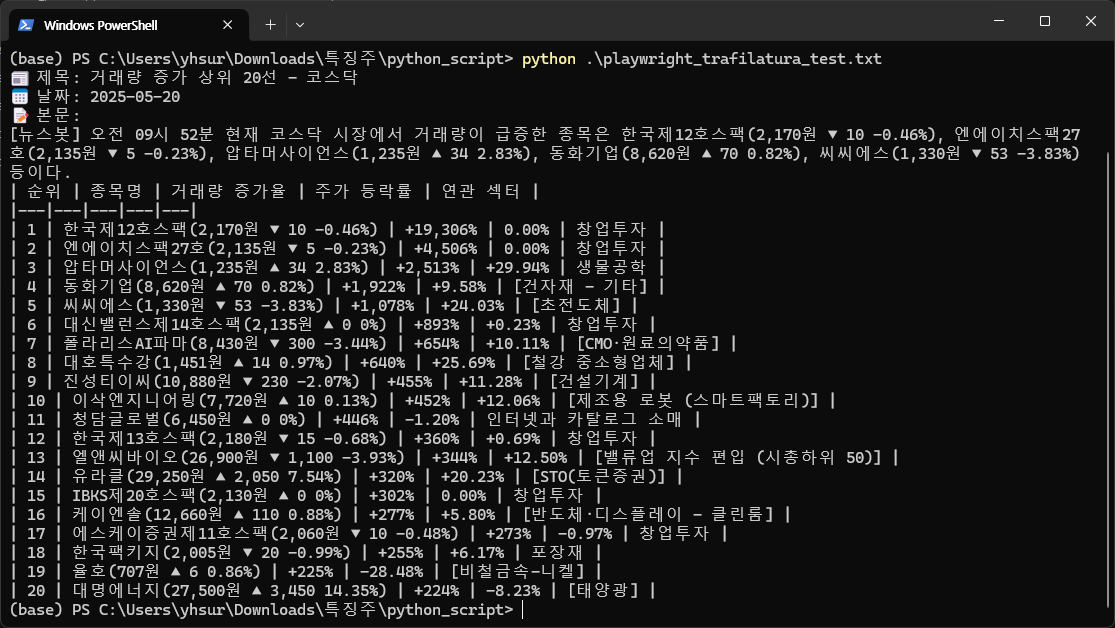
가장 많은 실패건수를 기록하고 있는 biz.chosun.com 웹사이트를 테스트 해보기로 했다. requests에 해당하는 부분을 playwright로 바꿔서 html을 추출하는 코드로 변경했다. 테스트 결과, 성공적으로 본문이 추출됨을 확인했다.
import asyncio
from playwright.sync_api import sync_playwright
import trafilatura
from trafilatura.metadata import extract_metadata

# 대상 URL 설정
url = "https://biz.chosun.com/stock/c-biz_bot/2025/05/20/ANYFOCJLKBURJBPW4ZXRNUSKLE"

# HTML 다운로드 (Playwright 사용)
def fetch_with_playwright(target_url):
    with sync_playwright() as p:
        browser = p.chromium.launch(headless=True)
        context = await browser.new_context(
            user_agent="Mozilla/5.0 (Windows NT 10.0; Win64; x64) AppleWebKit/537.36 (KHTML, like Gecko) Chrome/120.0.0.0 Safari/537.36"
        )
        page = browser.new_page()
        page.goto(target_url, wait_until='domcontentloaded', timeout=30000)
        page.wait_for_timeout(3000)
        content = page.content()
        browser.close()
        return content

# HTML 가져오기
downloaded = fetch_with_playwright(url)

# 메타데이터 및 본문 텍스트 추출
metadata = extract_metadata(downloaded)
text = trafilatura.extract(downloaded, output_format='txt', include_comments=False, favor_precision=True)

# 결과 출력
print(f"📰 제목: {metadata.title}")
print(f"📅 날짜: {metadata.date}")
print(f"📝 본문:\n{text}")
🖨️ 실행결과
⚠️ 주의 사항: Jupyter Notebook이 이미 asyncio 이벤트 루프를 실행 중이기 때문에, Jupyter에서는 비동기 버전을 사용해야 한다. (Jupyter Notebook 수정된 코드는 아래를 참고)
import asyncio
from playwright.async_api import async_playwright
import trafilatura
from trafilatura.metadata import extract_metadata

# 대상 URL
url = "https://biz.chosun.com/stock/c-biz_bot/2025/05/20/ANYFOCJLKBURJBPW4ZXRNUSKLE"

# Playwright로 HTML 가져오기 (비동기)
async def fetch_with_playwright(target_url):
    async with async_playwright() as p:
        browser = await p.chromium.launch(headless=True)
        context = await browser.new_context(
            user_agent="Mozilla/5.0 (Windows NT 10.0; Win64; x64) AppleWebKit/537.36 (KHTML, like Gecko) Chrome/120.0.0.0 Safari/537.36"
        )
        page = await browser.new_page()
        await page.goto(target_url, wait_until='domcontentloaded', timeout=30000)
        await page.wait_for_timeout(3000)
        content = await page.content()
        await browser.close()
        return content

# Jupyter에서는 asyncio.run() 대신 nest_asyncio 사용 필요
import nest_asyncio
nest_asyncio.apply()

# 실행 및 결과 추출
downloaded = asyncio.get_event_loop().run_until_complete(fetch_with_playwright(url))
metadata = extract_metadata(downloaded)
text = trafilatura.extract(downloaded, output_format='txt', include_comments=False, favor_precision=True)

# 결과 출력
print(f"📰 제목: {metadata.title}")
print(f"📅 날짜: {metadata.date}")
print(f"📝 본문:\n{text}")
Trafilatura - Playwright 조합의 성능 평가
성능 평가를 위해, Trafilatura - Requests 조합에서 실패한 94개의 웹사이트를 그대로 사용했다. 성능 평가를 위한 최종 코드는 아래와 같이 작성하였다.
import pandas as pd
import trafilatura
from trafilatura.metadata import extract_metadata
from playwright.sync_api import sync_playwright
import time
from datetime import datetime
import csv
from typing import List, Optional


def fetch_html_with_playwright(url: str, timeout: int = 30000) -> dict:
    """
    Playwright로 HTML 다운로드하는 함수
    """
    result = {
        'url': url,
        'html': '',
        'success': False,
        'error': None,
        'method_used': 'playwright'
    }

    try:
        with sync_playwright() as p:
            browser = p.chromium.launch(headless=True)
            context = browser.new_context(
                user_agent="Mozilla/5.0 (Windows NT 10.0; Win64; x64) AppleWebKit/537.36 (KHTML, like Gecko) Chrome/120.0.0.0 Safari/537.36"
            )
            page = browser.new_page()
            page.goto(url, wait_until='domcontentloaded', timeout=timeout)
            # 페이지 로딩 대기 (필요시)
            page.wait_for_timeout(3000)
            content = page.content()
            browser.close()

            result['html'] = content
            result['success'] = True

    except Exception as e:
        result['error'] = str(e)

    return result


def process_single_url(url, index, total_urls):
    """단일 URL 처리 함수"""
    start_time = time.time()
    result = {
        "index": index,
        "url": url,
        "status": "failed",
        "title": None,
        "date": None,
        "content": None,
        "processing_time": 0,
        "error_message": None,
    }

    try:
        print(f"Processing URL {index + 1}/{total_urls}: {url[:60]}...")

        # HTML 다운로드 (Playwright 사용)
        html_result = fetch_html_with_playwright(url)

        if html_result['success']:
            html_content = html_result['html']

            # trafilatura로 메타데이터 추출
            metadata = trafilatura.extract_metadata(html_content)

            # trafilatura로 본문 추출
            text = trafilatura.extract(
                html_content,
                output_format="txt",
                include_comments=False,
                favor_precision=True,
            )

            if text and len(text.strip()) > 0:
                result.update({
                    "status": "success",
                    "title": metadata.title if metadata and metadata.title else "No title",
                    "date": str(metadata.date) if metadata and metadata.date else "No date",
                    "content": text,
                })
            else:
                result["error_message"] = "Empty content extracted"
        else:
            result["error_message"] = f"Failed to download page: {html_result['error']}"

    except Exception as e:
        result["error_message"] = str(e)

    # 처리 시간 계산
    processing_time = time.time() - start_time
    result["processing_time"] = processing_time

    return result


def save_results_to_csv(results, input_file_path=None, output_file=None):
    """결과를 CSV 파일로 저장"""
    import os

    # 파일명이 지정되지 않으면 현재 시간을 포함한 파일명 생성
    if output_file is None:
        timestamp = datetime.now().strftime("%Y%m%d_%H%M%S")
        filename = f"url_processing_results_playwright_{timestamp}.csv"

        # 입력 파일과 같은 디렉토리에 저장
        if input_file_path and os.path.exists(input_file_path):
            input_dir = os.path.dirname(input_file_path)
            output_file = os.path.join(input_dir, filename)
        else:
            # 입력 파일 경로가 없으면 현재 디렉토리에 저장
            output_file = filename

    try:
        with open(output_file, "w", newline="", encoding="utf-8") as csvfile:
            fieldnames = [
                "index",
                "url",
                "status",
                "title",
                "date",
                "content",
                "processing_time",
                "error_message",
            ]
            writer = csv.DictWriter(csvfile, fieldnames=fieldnames)

            writer.writeheader()
            for result in results:
                writer.writerow(result)

        print(f"✅ 결과가 '{output_file}' 파일에 저장되었습니다.")
        return output_file  # 실제 저장된 파일명 반환

    except Exception as e:
        print(f"❌ 결과 저장 실패: {e}")
        return None


def print_summary(results, total_time, skipped_count=0):
    """처리 결과 요약 출력"""
    total_urls = len(results)
    successful_count = sum(1 for r in results if r["status"] == "success")
    failed_count = total_urls - successful_count
    processing_times = [r["processing_time"] for r in results]

    print("\n" + "=" * 7 + " SUMMARY " + "=" * 7)
    print(f"Total URLs processed: {total_urls}")
    print("Workers used: 1")  # 단일 스레드 처리
    print(f"Successfully decoded: {successful_count} ({successful_count/total_urls*100:.1f}%)")
    print(f"Failed to decode: {failed_count} ({failed_count/total_urls*100:.1f}%)")
    print(f"Skipped (Google News URLs): {skipped_count} ({skipped_count/(total_urls + skipped_count)*100:.1f}%)")

    if processing_times:
        avg_time = sum(processing_times) / len(processing_times)

        print("\n" + "-" * 5 + " TIMING INFORMATION " + "-" * 5)
        print(f"Total processing time: {int(total_time//60)}:{total_time%60:05.2f}")
        print(f"Average processing time per URL: {avg_time:.2f} seconds")
        print(f"Fastest URL processing time: {min(processing_times):.2f} seconds")
        print(f"Slowest URL processing time: {max(processing_times):.2f} seconds")

    print("\nProcess completed successfully. Results saved to CSV file.")


def process_urls_from_csv(csv_file_path, url_column="url", status_column="status"):
    """CSV 파일에서 status가 'failed'인 URL들을 읽어서 순차 처리"""

    print("=" * 50)
    print("🚀 URL 배치 처리 시작 (Playwright - Failed URLs만)")
    print("=" * 50)

    # CSV 파일 읽기
    try:
        df = pd.read_csv(csv_file_path)
        print(f"📋 CSV 파일 컬럼들: {list(df.columns)}")
        print(f"📋 총 행 수: {len(df)}")

        # 필요한 컬럼 존재 확인
        if url_column not in df.columns:
            raise ValueError(f"Column '{url_column}' not found in CSV file")
        if status_column not in df.columns:
            raise ValueError(f"Column '{status_column}' not found in CSV file")

        # status가 'failed'인 행들만 필터링
        failed_df = df[df[status_column] == 'failed']
        print(f"📋 전체 행 수: {len(df)}")
        print(f"📋 status가 'failed'인 행 수: {len(failed_df)}")

        if len(failed_df) == 0:
            print("⚠️ status가 'failed'인 URL이 없습니다.")
            return None, None

        # failed URL들 추출 (NULL 값 제외)
        all_urls = failed_df[url_column].dropna().tolist()
        print(f"📋 '{url_column}' 컬럼의 NULL이 아닌 값 개수: {len(all_urls)}")

        if all_urls:
            print(f"📋 첫 번째 URL 샘플: {all_urls[0]}")

        # news.google.com이 포함되지 않은 URL만 필터링
        urls = [url for url in all_urls if "news.google.com" not in str(url)]

        total_urls = len(urls)
        skipped_urls = len(all_urls) - total_urls

        print(f"📊 failed 상태의 전체 URL: {len(all_urls)}개")
        print(f"📊 처리 대상 URL: {total_urls}개")
        print(f"📊 건너뛴 URL (Google News URLs): {skipped_urls}개")

        if urls:
            print(f"📋 첫 번째 처리 대상 URL 샘플: {urls[0]}")

        print("-" * 30)

    except Exception as e:
        print(f"❌ CSV 파일 읽기 실패: {e}")
        return None

    total_start_time = time.time()
    results = []
    successful_count = 0
    failed_count = 0

    for i, url in enumerate(urls):
        result = process_single_url(url, i, total_urls)
        results.append(result)

        if result["status"] == "success":
            successful_count += 1
        else:
            failed_count += 1

        if (i + 1) % 10 == 0 or (i + 1) == total_urls:
            print(
                f"진행: {i + 1}/{total_urls} "
                f"({(i + 1)/total_urls*100:.1f}%) "
                f"성공: {successful_count}, 실패: {failed_count}"
            )

    total_processing_time = time.time() - total_start_time
    print_summary(results, total_processing_time, skipped_urls)

    saved_file = save_results_to_csv(results, input_file_path=csv_file_path)
    return results, saved_file


def main():
    import sys
    import os

    # 명령줄 인자로 파일명을 받은 경우
    if len(sys.argv) > 1:
        csv_file_path = sys.argv[1]
    else:
        # 대화형으로 파일명 입력받기
        print("=" * 50)
        print("🔍 CSV 파일 입력")
        print("=" * 50)

        while True:
            csv_file_path = input("처리할 CSV 파일 경로를 입력하세요: ").strip()

            # 따옴표 제거 (드래그앤드롭으로 붙여넣을 때 따옴표가 붙는 경우)
            csv_file_path = csv_file_path.strip('"').strip("'")

            # 파일 존재 여부 확인
            if os.path.exists(csv_file_path):
                break
            else:
                print(f"❌ 파일을 찾을 수 없습니다: {csv_file_path}")
                print("다시 입력해주세요.\n")

    # 파일 존재 여부 최종 확인
    if not os.path.exists(csv_file_path):
        print(f"❌ 파일을 찾을 수 없습니다: {csv_file_path}")
        return

    print(f"📂 처리할 파일: {csv_file_path}")

    # 컬럼명 설정 (필요시 여기서 변경 가능)
    url_column = "url"
    status_column = "status"

    # 컬럼명을 사용자가 지정하고 싶은 경우
    while True:
        change_columns = input(f"\nURL 컬럼명 (현재: '{url_column}')과 Status 컬럼명 (현재: '{status_column}')을 변경하시겠습니까? (y/n): ").strip().lower()

        if change_columns in ['y', 'yes']:
            url_column = input(f"URL 컬럼명을 입력하세요 (기본값: {url_column}): ").strip() or url_column
            status_column = input(f"Status 컬럼명을 입력하세요 (기본값: {status_column}): ").strip() or status_column
            break
        elif change_columns in ['n', 'no']:
            break
        else:
            print("y 또는 n을 입력해주세요.")

    print(f"🔧 사용할 컬럼: URL='{url_column}', Status='{status_column}'")

    # URL 처리 시작
    results, saved_file = process_urls_from_csv(csv_file_path, url_column=url_column, status_column=status_column)

    if results:
        print(f"\n📁 저장된 파일: {saved_file}")

        print("\n🔍 처리 결과 샘플:")
        for i, result in enumerate(results[:3]):
            print(f"\n[{i+1}] {result['url'][:50]}...")
            print(f"    상태: {result['status']}")
            print(f"    제목: {result['title']}")
            print(f"    처리시간: {result['processing_time']:.2f}초")
            if result["status"] == "failed":
                print(f"    오류: {result['error_message']}")
    else:
        print("\n❌ 처리할 URL이 없거나 처리에 실패했습니다.")


if __name__ == "__main__":
    main()
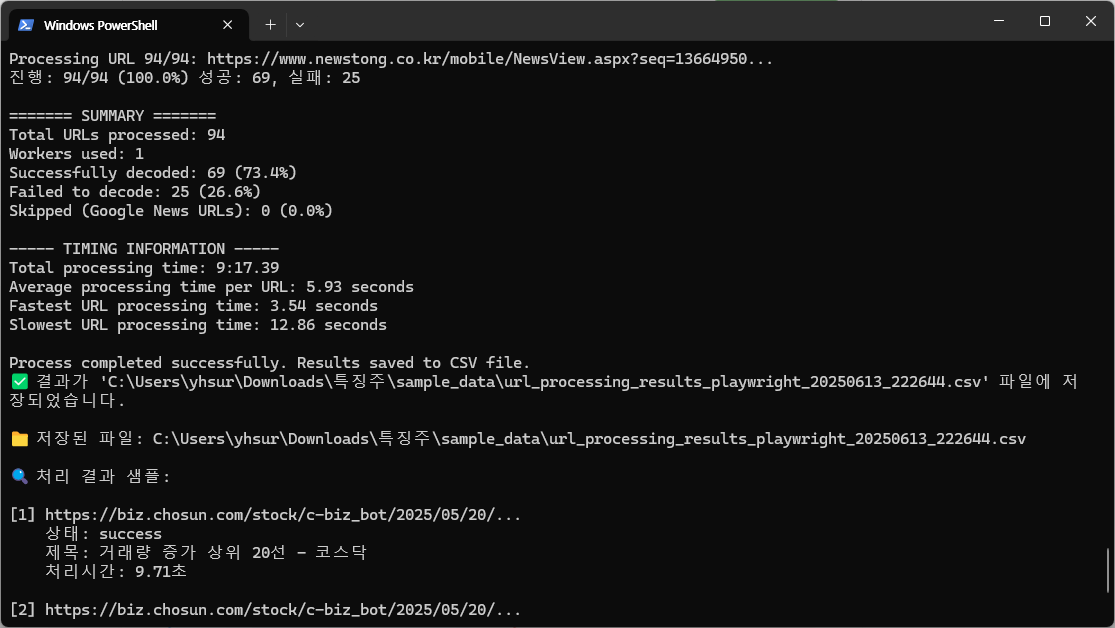
🖨️ 실행결과
📊 성능 평가 및 결과
request는 0.61초에 하나의 웹사이트를 추출할 수 있지만, playwright를 이용한 브라우저 자동화는 평균 5.93초로 시간이 약 10배 가까이 증가하였다. 또한, 여전히 msn 웹사이트에 대해서는 추출이 100% 실패했다.
🌐 도메인별 성공률 분석
✅ 성공 도메인
biz.chosun.com
62/62100%
biz.sbs.co.kr
4/4100%
www.antnews.org
1/1100%
www.medisobizanews.com
1/1100%
❌ 실패/부분실패 도메인
www.msn.com
0/230%
www.newstong.co.kr
1/333.3%
❌ 실패 사이트 심층 분석
www.msn.com (23건 모두 실패)
실패 원인: Empty content extracted 분석: 동적 콘텐츠 로딩 또는 봇 차단 가능성
www.newstong.co.kr (2건 실패)
실패 원인: Empty content extracted 분석: 일부 페이지의 구조적 차이점 존재
⏱️ 처리 시간 분포
23
24.5%
4
4.3%
14
14.9%
30
31.9%
16
17.0%
7
7.4%
3-4초
4-5초
5-6초
6-7초
7-8초
8초+
🔍 주요 인사이트 및 개선 방안
조선비즈 가장 안정적
100% 성공률로 가장 신뢰할 수 있는 스크래핑 대상
처리 시간 6-7초 집중
전체의 31.9%가 6-7초 구간에 분포하며 안정적 성능
MSN 사이트 스크래핑 불가능
봇 차단 또는 JavaScript 의존적 콘텐츠 로딩으로 완전 실패
콘텐츠 추출 로직 개선 필요
모든 실패가 "Empty content extracted" - 추출 방식 재검토 요구
마치며
Playwright와 Trafilatura를 결합한 웹 스크래핑 방식으로 기존 requests 기반 방법을 개선하였다. 94개 실패 URL을 대상으로 테스트한 결과, 69개(73.4%)가 성공하여 상당한 개선을 보였다. 특히 biz.chosun.com은 100% 성공률을 달성했으나, 여전히 msn 웹사이트는 실패했다. 처리 시간은 평균 5.93초로 requests 대비 약 10배 증가했지만, JavaScript 기반 동적 웹사이트에서 안정적인 콘텐츠 추출이 가능해졌다.
분석 결과 두 가지 주요 개선사항이 도출되었습니다: 첫째, 처리 시간 단축을 위한 병렬 처리 도입이 필요하며, 둘째, MSN 사이트에 특화된 콘텐츠 추출 로직이 필요하다. 다음글에는 첫번째 문제인 처리 시간 닥축을 위한 병렬 처리 도입에 대해서 다룬다.